
Before creating a Google passkey, decide who can unlock the device
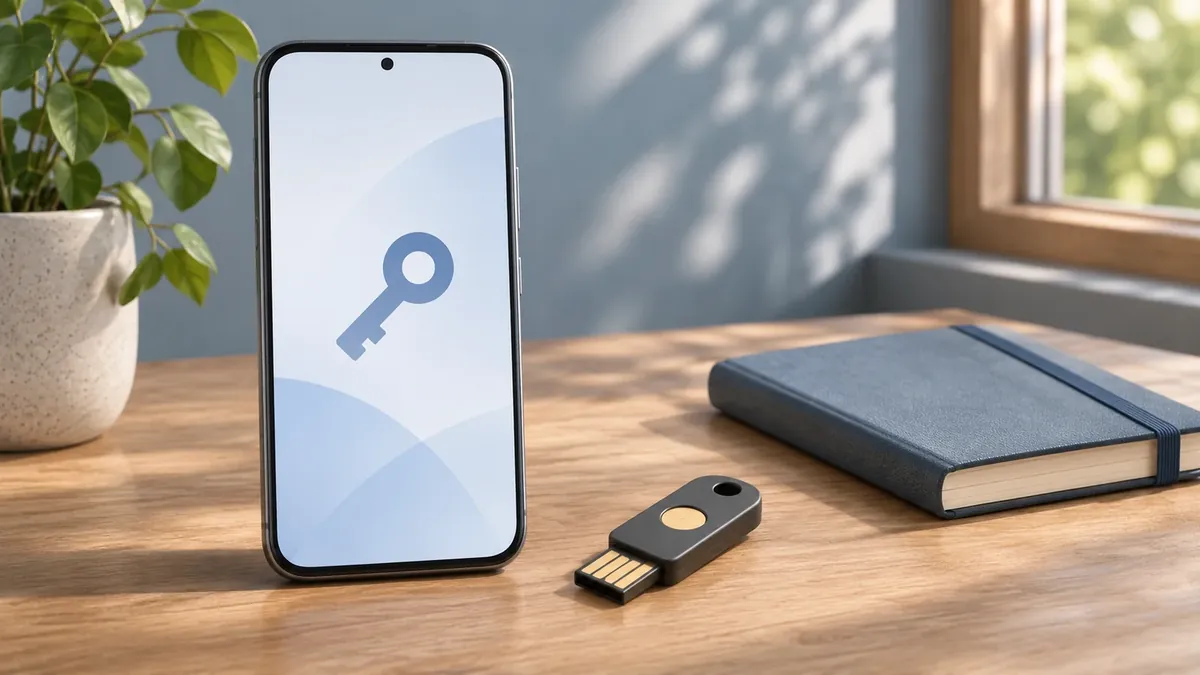
A passkey can make signing in simpler, but the device holding it matters. Start on a device you control, keep a working recovery route, and check what remains accessible after you sign out.
The first question when setting up a Google Account passkey is not whether you prefer a fingerprint or a PIN. It is whether the phone or computer belongs to you and whether anyone else can unlock it. Google explicitly advises creating passkeys only on devices you personally own and use. Signing out of the account does not necessarily remove the passkey.
That distinction turns a convenient login feature into a practical decision about access. A family computer, a borrowed laptop and your own locked phone are different environments, even if all three can open the same sign-in page. Set up the credential where you intend to keep that access.
Check the account before changing sign-in
Open your Google Account's security settings and confirm the account name. This is especially useful if you keep personal and work accounts open in the same browser. Review the passkeys already listed before adding another; Google says signed-in Android devices may already have passkeys registered automatically.
A work or school account has an additional constraint. Its administrator may not allow a passkey to replace the password at sign-in. Google says a passkey can still have other roles, including a second verification factor or certain recovery and sensitive-account actions. Check the account's actual settings rather than assuming that a personal-account walkthrough describes your employer's policy.
Create it on a device you intend to trust
Google's >passkey instructions (opens in a new tab) direct users to their passkey settings, then to Create a passkey and the device-unlock prompt. Keep the operating system and browser current, and turn on the screen lock. On Apple devices, Google also specifies iCloud Keychain as a prerequisite.
A compatible FIDO2 hardware security key is another supported option. The setup flow offers Use another device and then instructions for the key. Choose the method you can realistically keep available. A credential on a device left at home may be secure but inconvenient when you need to sign in elsewhere.
After setup, test a normal sign-in while you still have access to the account. Do not treat a missing prompt as proof that the credential failed: Google notes that a newly created passkey may take up to seven days to become available at sign-in, although an already trusted passkey or physical security key may help speed that process.
Keep convenience separate from recovery
Creating a passkey does not automatically mean deleting the account password. Google says users can still choose password sign-in, and the Skip password when possible setting controls which method is preferred. Turning that preference off is different from removing a passkey.
Write down which device or credential manager holds the passkey, without recording secrets in a shared document. Keep the account's recovery arrangements current before relying on a single device. The useful test is simple: if that phone were unavailable tomorrow, would you know which legitimate recovery route to use?
Remove access when a device leaves your control
If you lose a device or accidentally create a passkey on a shared one, Google directs you to remove it from the account. Manually created passkeys can be selected under Passkeys and security keys. Automatically created Android passkeys require the device-sign-out route; Google advises signing out all sessions with the same device name when needed.
Finally, check any third-party credential manager if the removed passkey still appears as an option. Account settings and a manager's saved entries are separate places to review. The goal is not to accumulate more login methods indefinitely, but to know which devices still provide access and to remove those you no longer control.

 Felix Honigwachs