
How to stop unwanted website notifications in Chrome on a computer
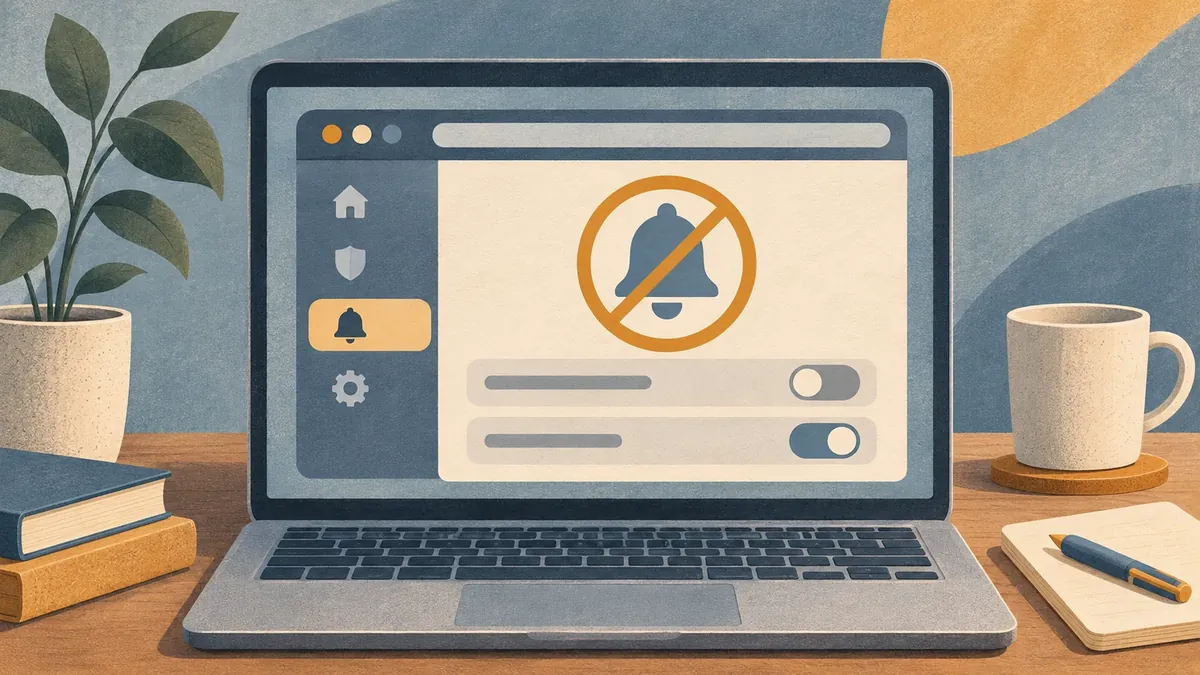
An unwanted alert from a website does not necessarily mean you need to reset Chrome or erase your browsing history. On a computer, start with that site's notification permission. Chrome keeps this control separate from the setting for pop-up windows and redirects.
This guide covers desktop Chrome. Menu wording can differ with the browser language or version, so follow the function described if a label is slightly different.
Block the website's permission
Open Chrome's three-dot menu and go to Settings, then Privacy and security, Site Settings and Notifications. Google's help page lets you add a site's address to the list of sites that are not allowed to send notifications. Use the address associated with the unwanted alert, checking the domain carefully.
You can also manage the permission from a website you already know and trust: open its site-information control beside the address, then set Notifications to Block. You do not need to follow a suspicious alert to reach the notification settings.
Blocking notifications targets that site's ability to send browser alerts. It is not the same operation as deleting cookies, signing out of every website or unsubscribing from email. Keep the fix focused on the symptom you are seeing.
Separate alerts from pop-up windows
A new browser window or an unwanted redirect may require a different setting. Go to Privacy and security, Site Settings, then Pop-ups and redirects. Review sites allowed to open pop-ups and block the unwanted exception.
Google's >Chrome help (opens in a new tab) explicitly notes that notifications can continue even after pop-ups are disabled. Changing only the pop-up setting therefore may leave a notification permission untouched. Conversely, blocking notifications does not configure every pop-up exception.
If the problem continues, note the website or application named on the alert before changing more settings. Persistent unwanted behavior may need further investigation; a single notification is not enough to identify its cause.
Make future requests less intrusive
In Notifications, review the default permission setting. If you still want sites to ask, Chrome offers quieter messaging. This reduces the interruption caused by permission requests and shows an icon near the address instead of a pop-up prompt. It does not mean every previously allowed site's notifications have been blocked.
Chrome may also remove notification permission from sites you have not visited for a while. Its Safety Check area lists removed permissions under safety recommendations. Restore a permission only when you actually want that site's alerts.
After making a change, confirm that useful alerts still arrive and the unwanted source is blocked. Keep legitimate calendar or work-site permissions if you need them, rather than using a broad reset as your first step.

 Felix Honigwachs